BC Buddy
A free browser extension that makes the Business Central web client easier to work in, and gives every environment its own colour, so you never post in production by mistake.
An easier web client
Install it and Business Central is easier to work in straight away. No setup needed:
- Copy any value with one click, also an amount or a No. you cannot select.
- Wide pages with the action bar pinned, and lists instead of tiles.
- Bigger dropdowns that show all their columns.
- Week numbers in the date picker.
- The line you are on stands out in journals and orders.
- No notifications bell, and if you like, no animations.
Each one has its own switch. See them all.
A colour for every environment
A test environment and the real one look exactly alike. BC Buddy colours the bar at the top of Business Central, with your own text:
Dynamics 365 Business Central — PRODUCTION · CRONUS BE Dynamics 365 Business Central — CRONUS BE (Sandbox)
It can also draw a coloured frame around the window, a banner, a marked tab title and a coloured tab icon. You choose the colours: per environment, per company or per customer.
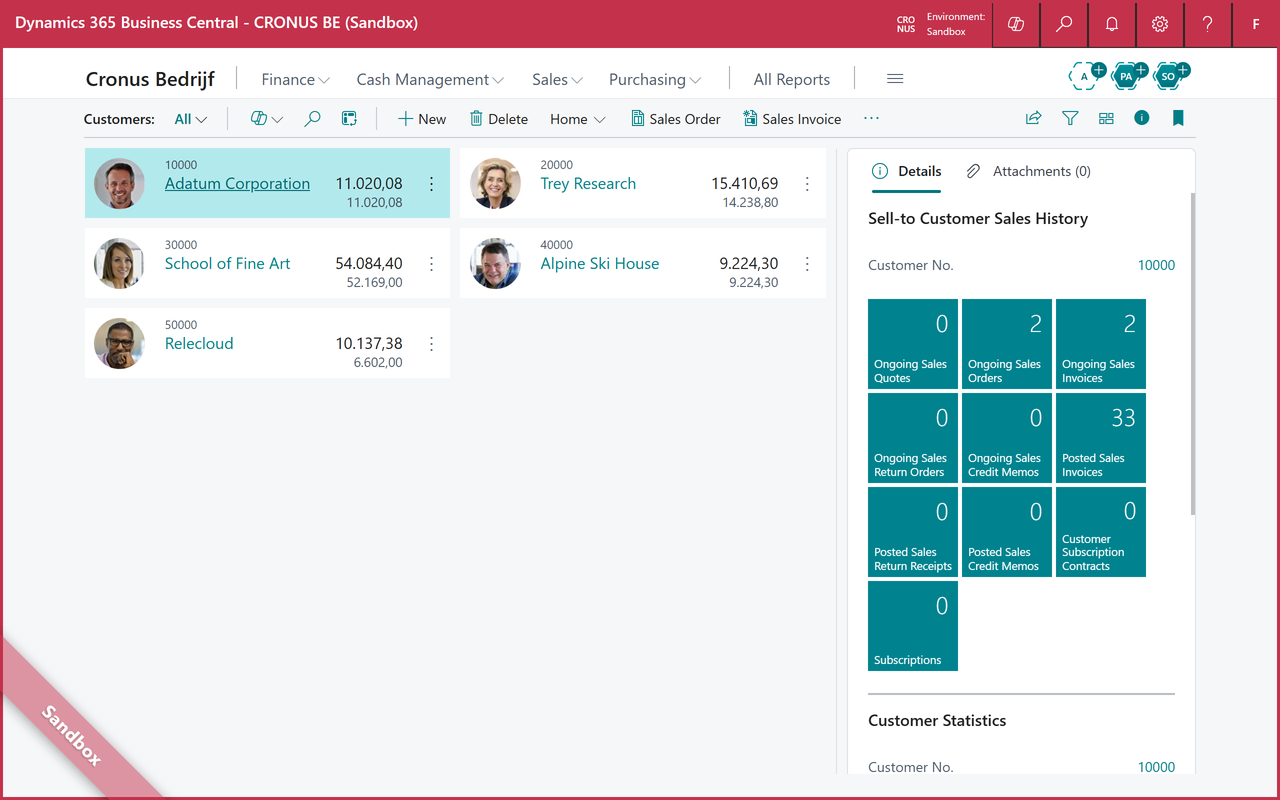
Setting up your first two colours takes a minute: Getting started.
Good to know
- Works for your whole team. One person sets up the colours and everyone else gets them automatically. See Sharing with your team.
- Nothing leaves your computer. No account, no tracking. See Privacy.
- Chrome and Edge, version 111 or newer, with Business Central online or on your own server.
- In English, Dutch and French, following the language of your browser.
- Free and open source under the MIT licence, also for use at work.