Help & feedback
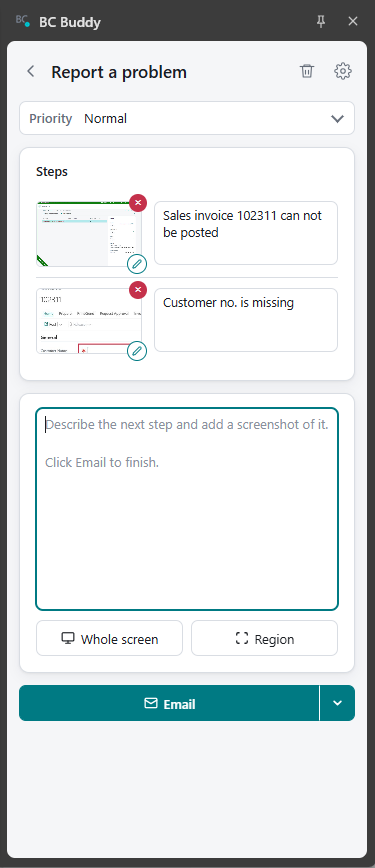
Something does not work, or you have an idea? With Help & feedback you send your helpdesk a clear report straight from Business Central: what you did, step by step, with a screenshot of each step. The helpdesk sees exactly what you saw, and does not have to ask which company or page you were on.
Not there yet?
Help & feedback starts off. Your IT department or helpdesk usually switches it on for you. To do it yourself, see Switching it on below.
Opening it
In Business Central, click the BC Buddy icon in the top bar: the two people, just before the gear. A panel opens next to Business Central. Choose:
- Report a problem: something does not work as it should.
- Feedback or a suggestion: an idea, or a question about something new.
The BC Buddy icon in the browser toolbar opens the same panel.
The panel stays open while you move around Business Central, and it is never in your screenshots. Closed it by accident? Open it again: your report is still there. The bin at the top throws the report away and takes you back to the start.
Three steps
1. Write what happened
Type in the box what you were doing and what went wrong. Keep it to this one step, for example I open the sales order and click Post. Ctrl+B, Ctrl+I and Ctrl+U make text bold, italic or underlined.
A report can have up to 9 screenshots. For an idea, text alone is fine.
If there is a Priority list, pick how urgent it is. When you pick the most urgent one, your IT team may show a short message above it, such as a phone number to call.
2. Take a screenshot
Go to the screen that shows the step, then:
- Whole screen for everything you see, or
- Region and drag over the part of the page that matters.
Your text goes with that screenshot, and the box is empty again for the next step. Repeat for every step: write, then take a screenshot. You can still change the text under each screenshot afterwards, and drag a screenshot up or down to change the order of the steps; its text moves with it. With many steps the list of Steps scrolls, so the box and the buttons stay in view. Tab jumps from one step's text to the next.
To point something out, click Draw on this screenshot:
- Arrow and Box to show where to look,
- Pen to draw freely, with a colour of your choice,
- Blur to hide a name, an amount or anything else that is private,
- Undo (Ctrl+Z) takes back the last stroke, Clear all starts the drawing over.
Click Save (or press Enter) when you are done, or the × (or Esc) to leave the screenshot out.
3. Send it
Click Email. BC Buddy creates the email, with the screenshots inside, and opens it in your email app. Check it and click Send.
The first time, Chrome or Edge asks whether BC Buddy may open the files it downloads. Say yes, and from then on the email opens by itself. Said no? Then the email is saved in your Downloads folder: open it from the top of the browser.
Other ways are under the arrow next to Email:
- Email (draft): opens a new email in your email app and puts the report on the clipboard. Click in the email and press Ctrl+V.
- Download: saves the report as a web page (
.html), to attach to an email or a ticket. - Copy: puts the report on the clipboard, to paste anywhere.
Text left in the box when you click Email counts as the last step, without a screenshot.
Once the report is out, Email turns into Done. Click it when the email is sent: that throws the report away and closes the panel. Need another way after all? The arrow still has them all.
What the helpdesk receives
One email with:
- where you were: the environment and the company,
- the priority, if you picked one, and the kind of report,
- each step: the page title, which links to the page, your text and the screenshot,
- at the bottom: your system (Windows, Chrome or Edge), the tenant, and the date and time.
The subject says what kind of report it is, and starts with the first line of what you wrote, for example [BC] Problem - High - CRONUS BE: Posting a sales order fails.
Tips
- One step per screenshot. Short text, then the screenshot that shows it. Three small steps say more than one long story.
- Draw an arrow at the button, the field or the error.
- Blur what is private, such as customer names, bank details or salaries, before you send.
- Show the error itself. Take the screenshot while the error message is still on the screen.
- Text only is fine too: for an idea, a few lines without a screenshot are enough.
When something does not work
The email does not open
Look at the top right of the browser for the download, and open the file from there: it opens in your email app.
Still nothing? Click the arrow next to the main button, choose Email (draft) and press Ctrl+V in the new email. Working in Gmail or Outlook on the web? Pictures often do not paste there. Then choose Download under the same arrow and attach the file to your email.
No BC Buddy icon in the top bar
Reload the Business Central tab (press F5). Still not there? Help & feedback may be off: see Switching it on. The icon also shows while Web client is on. Business Central on your own server has a different top bar without the icon; use the BC Buddy icon in the browser toolbar instead.
Why Download replaces Email
The panel does not know where to send the report yet. Ask your helpdesk or IT department, or fill in the address yourself under Help & feedback in the settings. Until then Download takes the place of Email: save the report and attach it to an email yourself.
I cannot take a screenshot
Screenshots work on a Business Central page only. Click in the Business Central tab first, and try again.
A field says Set by your organisation
Your IT department or your team's shared file chose that setting for you, so you cannot change it. Ask them if it should be different.
For admins and IT
Switching it on
On the BC Buddy settings page, go to Help & feedback and turn on the switch in front of the heading. The dot next to Help & feedback in the menu turns green.
Then fill in:
- Email: the helpdesk address the reports go to. Only one address.
- Priorities: one per line, for example Normal, High, Critical; Load examples in the empty box fills in a list to start from. Leave it empty and there is no priority field: the three settings below are then hidden too.
- Default priority: the priority a new report starts with.
- Message for urgent problems: a short line shown above the priority when someone picks the last priority in the list, for example Urgent? Call the helpdesk on 03 123 45 67. It is only a hint on screen: it does not go into the report. Leave it empty for no message. One line, at most 200 characters.
- Link (optional): makes that message a link people can click: an address
that starts with
https://, such as a Teams link, ortel:followed by a phone number, such astel:+00 000 00 00 00. Other links are refused. - Email subject for a problem and Email subject for feedback: each shows the standard subject until you change it. Empty it to go back to the standard one.
Email subjects
A subject can hold these placeholders, listed under the subject fields. BC Buddy fills them in when the email is created:
| Placeholder | Becomes |
|---|---|
{prio} |
the priority, only when there are priorities |
{company} |
the company of the Business Central page |
{environment} |
the environment |
{type} |
the kind of report: Problem or Feedback |
{tenant} |
the Business Central tenant |
{title} |
the first line of the message |
The standard subjects are [BC] Problem - {prio} - {company}: {title} and
[BC] Feedback - {prio} - {company}: {title}, without {prio} when there
are no priorities. A subject is one line of at most 200 characters.
The same settings for the whole team
Set it up once and give everyone the same settings:
- With the team file. Set up Help & feedback, then click Export to file under Sharing: the file carries these settings along with the rules. While someone uses that file, the settings it holds are locked for them, with Set by your organisation next to each one. See Team file.
- With Intune or Group Policy. Every setting above can also be set by policy, and then nobody can change it. See Install with Intune.
The settings in the JSON file
| Key | Value |
|---|---|
feedbackEnabled |
true or false |
feedbackEmail |
one address, such as "helpdesk@example.com" |
feedbackPriorities |
a list of 1 to 10 names of at most 40 characters; [] or left out for no priority field |
feedbackDefaultPriority |
one of the priorities |
feedbackSubjectBug |
the subject for a problem |
feedbackSubjectIdea |
the subject for feedback |
feedbackUrgentText |
the message for urgent problems, one line of at most 200 characters; "" for none |
feedbackUrgentLink |
"", an https:// address of at most 500 characters, or tel: with digits, spaces and + ( ) - . (at most 30 characters) |
{
  "app": "bc-buddy",
  "version": 3,
  "rules": [],
  "feedbackEnabled": true,
  "feedbackEmail": "helpdesk@example.com",
  "feedbackPriorities": ["Low", "Normal", "Urgent"],
  "feedbackDefaultPriority": "Normal",
  "feedbackSubjectBug": "[BC] Problem - {prio} - {company}: {title}",
  "feedbackSubjectIdea": "[BC] Feedback - {prio} - {company}: {title}",
  "feedbackUrgentText": "Urgent? Call the helpdesk on 03 123 45 67.",
  "feedbackUrgentLink": "tel:+00 000 00 00 00"
}
A value that is not valid, such as two addresses or a seventh priority, is ignored.