Styles
A style decides what a marking looks like: the coloured bar at the top, a frame, a banner. The colour itself comes from the rule. Nothing shows in Business Central until the switch in front of Rules under Environments is on.
Several rules can share one style, so you set it up once. You start with two:
- Full shows everything below: the bar at the top, a frame, a banner in the bottom-left corner, the tab title and the tab icon. New rules get this one.
- Subtle only colours the bar at the top and leaves its text as it is.
Pick one on each rule, change them, or add your own. Styles from your team's file can be picked too. They are named in the language you install BC Buddy in: Volledig and Subtiel in Dutch, Complet and Discret in French.
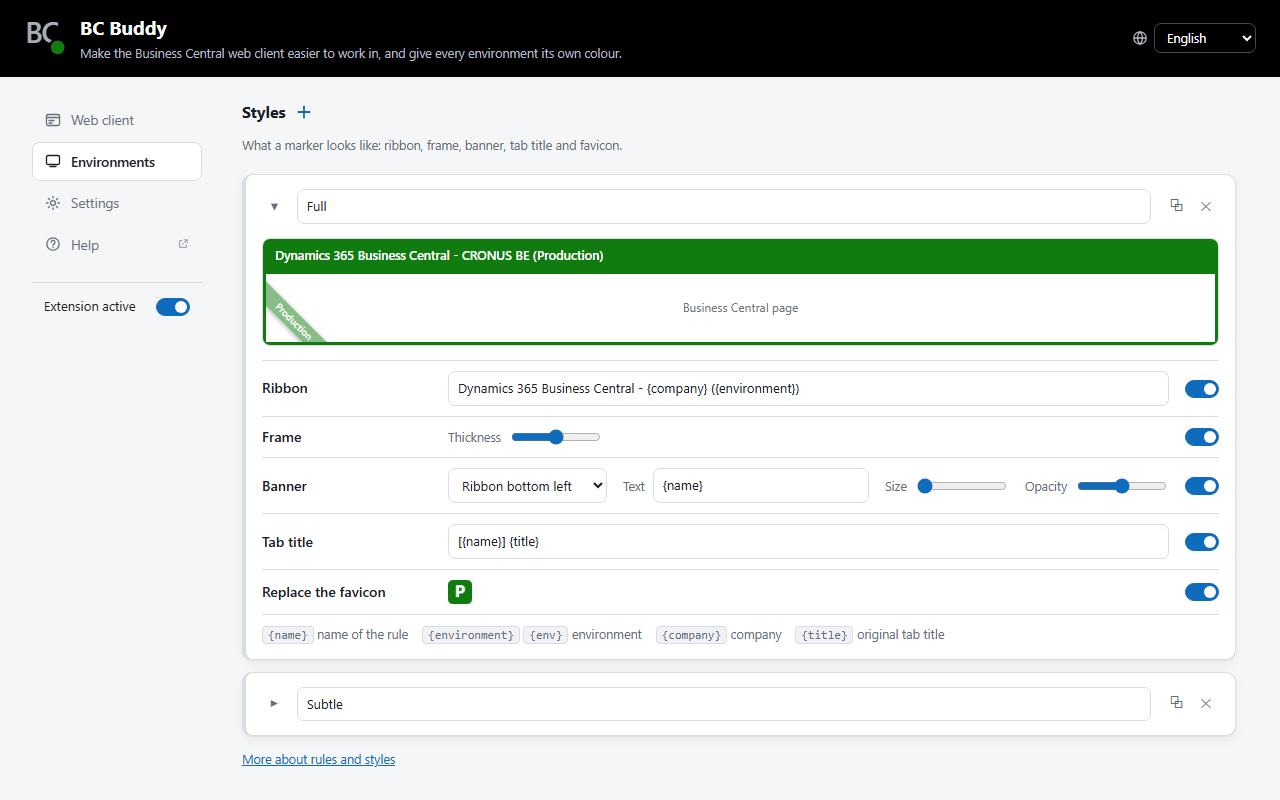
The preview uses the colour and name of the rule that fits the address under Test. When no rule fits, it shows Business Central's own colour.
What a style can show
Tick the ones you want:
- Ribbon
- The bar at the top of Business Central, in the colour of the rule, with a text of your own.
- Frame
- A coloured border around the whole window, 1 to 5 pixels wide.
- Banner
- A bar with a text such as
SANDBOX. Bar at the top sits above Business Central's own top bar and moves the page down, so it covers nothing. Bar at the bottom runs along the bottom, and the four Ribbon choices put a diagonal ribbon in a corner. At Size all the way left, the text shrinks to fit; further right it is larger. Opacity lets the page show through the bar at the bottom or a ribbon; the bar at the top is always solid. - Tab title
- The name of the browser tab with a marking added, for example
[TEST] Company Information. - Favicon
- A coloured icon on the browser tab with one or two letters, so you spot the right tab in a row of tabs. You type the letters on the rule.
BC Buddy picks the text colour itself: white or black, whichever is easiest to read. On a see-through banner it looks at the colour you actually see, the rule's colour mixed with the page behind it.
Your own text
In the ribbon, banner and tab title you can type plain text, and add these placeholders, which BC Buddy fills in for you:
| Type | Becomes |
|---|---|
{name} |
The name of the rule, such as PRODUCTION |
{environment} or {env} |
The environment, such as Sandbox |
{company} |
The company, such as CRONUS BE. Not in the address? Then the name on the page |
{tenant} |
The tenant, such as contoso.com |
{title} |
The original name of the browser tab |
Example
A ribbon text of {name} - {company} shows PRODUCTION - CRONUS BE. On a
page without a company it simply shows PRODUCTION: a placeholder that
stays empty takes the dash next to it along.